

How to Install WordPress on Any Hosting Step by Step

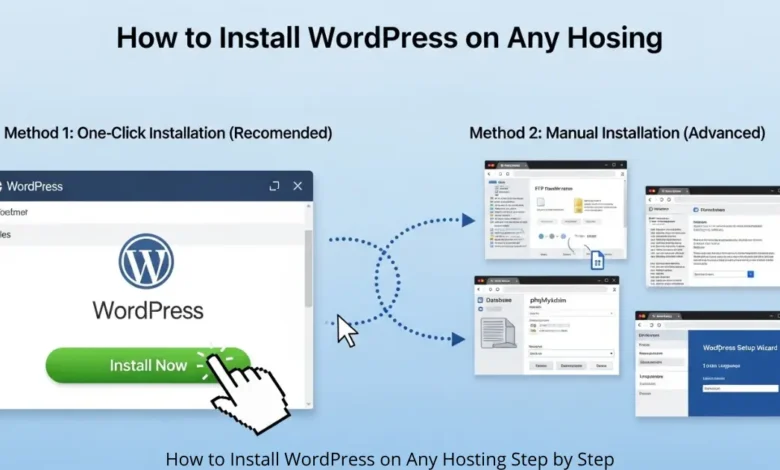
Installing WordPress is the first essential step for building a professional website, blog, or online business. Whether you want to create a personal blog, a technology site, or an online store, WordPress offers one of the most flexible and powerful platforms available today. The good news is that installing WordPress is no longer a complex task. Most hosting providers now support quick installations, and even manual installation can be completed in just a few steps.
This guide explains how to install WordPress on any hosting step by step, covering both automatic and manual methods. By the end of this tutorial, you will have a fully functional WordPress website ready for customization and content creation.
Why WordPress Is the Most Popular Website Platform
Before diving into the installation process, it is important to understand why WordPress dominates the web development ecosystem.
WordPress powers over 40% of all websites on the internet, making it the most widely used content management system (CMS). Its popularity comes from several key advantages:
- Easy installation and setup
- Flexible themes and customization options
- Thousands of plugins for extended functionality
- Strong SEO capabilities
- Large global community and support resources
Because WordPress is open-source software, anyone can download and install it on almost any hosting provider that supports PHP and MySQL.
Read Also:
How to Fix Any WordPress Technical Issue: A Step-by-Step Troubleshooting Guide
WordPress Site Speed and Google Indexing: How I Fixed Performance Issues and Recovered Visibility (2026 Case Study)
Requirements Before Installing WordPress
Before starting the installation process, make sure your hosting environment meets the basic requirements for WordPress.
Most hosting companies already support these requirements by default, but it is still useful to verify them.
Minimum requirements for WordPress:
- A domain name
- Web hosting account
- PHP version 7.4 or higher
- MySQL 5.7 or MariaDB 10.3 or higher
- HTTPS support (recommended for security)
Once you have these elements ready, you can proceed with installing WordPress.
Method 1: Install WordPress Using One-Click Installation
The easiest and fastest way to install WordPress is through the one-click installer provided by your hosting control panel. Most hosting providers include tools like Softaculous, Fantastico, or QuickInstall inside cPanel.
Step 1: Log in to Your Hosting Control Panel
Access your hosting dashboard using the credentials provided by your hosting company. Most hosting providers allow access through a control panel such as:
- cPanel
- Plesk
- Custom hosting dashboards
Once inside the control panel, look for a section called Softaculous Apps Installer or WordPress Installer.
Step 2: Locate the WordPress Installer
Inside Softaculous or the application installer, search for WordPress.
You will usually find it listed under:
- Blogs
- Content Management Systems
- Popular Scripts
Click on the WordPress icon to start the installation process.
Step 3: Configure WordPress Installation Settings
You will now see a setup form where you must enter several configuration details.
Important settings include:
Choose Protocol
Select either:
- http://
- https:// (recommended)
If your website uses an SSL certificate, always choose HTTPS.
Choose Domain
Select the domain where you want to install WordPress.
Directory
Leave this field empty if you want WordPress installed directly on your domain.
Example:
example.com
If you enter a folder name such as:
blog
WordPress will install at:
example.com/blog
Step 4: Set Website Information
You will now enter the basic website information.
Site Name
The title of your website.
Example:
Feenanoor Tech
Site Description
A short tagline describing your website.
Example:
Technology Guides and Digital Solutions
These settings can be changed later inside WordPress.
Step 5: Create Your WordPress Admin Account
You must now create the administrator login credentials.
Important fields include:
- Admin Username
- Admin Password
- Admin Email
Avoid using simple usernames like admin, because they make your website more vulnerable to hacking attempts.
Choose a strong password with letters, numbers, and symbols.
Step 6: Complete the Installation
After filling in all settings, click Install.
The system will automatically:
- Download WordPress files
- Create the database
- Configure the installation
This process usually takes less than one minute.
Once finished, you will see the login URL for your WordPress dashboard:
example.com/wp-admin
You can now log in and start building your website.
Method 2: Install WordPress Manually
Manual installation is slightly more technical but gives you full control over the setup process. This method works with any hosting provider, even if a one-click installer is not available.
Step 1: Download WordPress
Visit the official WordPress website and download the latest version of the platform.
You will receive a compressed ZIP file containing all WordPress core files.
Step 2: Upload WordPress Files to Your Hosting
Use either:
- File Manager in your hosting control panel
- FTP software such as FileZilla
Upload the WordPress ZIP file to your website’s root directory.
The root directory is usually called:
public_html
After uploading, extract the ZIP file so that all WordPress files appear inside the directory.
Step 3: Create a MySQL Database
WordPress requires a database to store website content and settings.
Inside your hosting control panel:
- Open MySQL Databases
- Create a new database
- Create a database user
- Assign the user to the database
- Grant all privileges
Save the following information:
- Database name
- Database username
- Database password
You will need these details during installation.
Step 4: Run the WordPress Installation Script
Open your browser and visit your domain:
https://yourdomain.com
The WordPress installation wizard will start automatically.
You will be asked to enter:
- Database name
- Database username
- Database password
- Database host (usually localhost)
After entering the information, click Submit.
Step 5: Complete WordPress Setup
WordPress will now ask for your website information:
- Website title
- Admin username
- Password
- Email address
Once you fill in the details, click Install WordPress.
Your WordPress website is now successfully installed.
Accessing Your WordPress Dashboard
After installation, you can access the admin dashboard using the following URL:
yourdomain.com/wp-admin
Log in using your admin username and password.
The dashboard is where you can:
- Install themes
- Add plugins
- Publish posts and pages
- Manage website settings
Important Steps After Installing WordPress
After installing WordPress, there are several important tasks you should complete to improve security and performance.
Install a Theme
A theme controls the appearance of your website. You can install free or premium themes from the WordPress theme directory.
Install Essential Plugins
Some useful plugins include:
- SEO plugins
- security plugins
- caching plugins
- backup tools
Configure SEO Settings
Adjust important SEO settings such as:
- Permalinks structure
- Meta tags
- XML sitemaps
These improvements help your website perform better in search engines.
Common WordPress Installation Problems
Even though WordPress installation is usually straightforward, some users may encounter errors.
Common issues include:
- Database connection errors
- File permission problems
- incorrect database credentials
- hosting configuration conflicts
Most of these problems can be solved by checking database settings or re-uploading the WordPress files.
Conclusion
Learning how to install WordPress on any hosting step by step is a fundamental skill for anyone who wants to create a professional website. Thanks to modern hosting tools, WordPress installation can be completed in just a few minutes using a one-click installer, while manual installation provides greater control over the setup process.
Once WordPress is installed, you can begin customizing your site, installing plugins, publishing content, and optimizing your website for search engines. With the right configuration and maintenance, WordPress can power anything from a small personal blog to a large-scale digital platform.
FAQs
How long does it take to install WordPress?
Most installations take less than five minutes when using a one-click installer.
Can I install WordPress without hosting?
No. WordPress requires a web hosting environment to store files and run the CMS.
Is WordPress installation free?
Yes. WordPress itself is free to download and install, but you must pay for hosting and a domain name.
Do I need coding skills to install WordPress?
No coding knowledge is required. Most hosting providers offer simple tools that allow beginners to install WordPress easily.
Discover more from Feenanoor Tech
Subscribe to get the latest posts sent to your email.

