


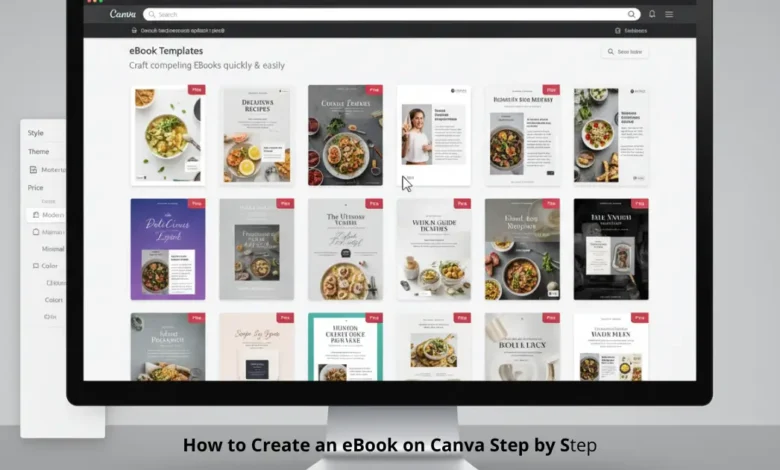
How to create an eBook on Canva step by step is one of the fastest ways to turn a document into a clean, professional digital book without advanced design skills. Canva works well for eBooks because it gives you ready-made layouts, consistent styling tools, and reliable export options—so your final file looks polished on any device.
Step 1: Plan the eBook structure before opening Canva
Start by defining what your eBook will contain. Decide the number of chapters, the order of sections, and what pages you need (cover, table of contents, chapter pages, conclusion, and any bonus pages).
Keep your content in a separate document first. This prevents messy design work later and makes it easier to paste text cleanly.




Step 2: Create or log in to your Canva account
Go to Canva and sign in. If you do not have an account, create one using your email or Google account.
Make sure you can access the editor without restrictions. If you plan to use premium templates, confirm what is available in your plan.
Step 3: Choose the right Canva document type
In Canva’s search bar, type “eBook” or “ebook” and look for templates labeled for eBooks. You can also use “A4 Document” if you want a standard printable PDF size.
If your eBook is mainly for mobile reading, consider a slightly narrower layout. If it’s for printing, stick to A4 or US Letter.
Technical Solutions: A Complete Guide to Fixing Website, SEO, and Digital Performance Issues
Step 4: Pick a template that matches your niche
Select a template that fits the style of your topic. A business eBook should look clean and minimal, while a lifestyle eBook can handle more visuals and creative layouts.
Do not over-prioritize design. Choose a template that is easy to read and has consistent headings and spacing.
Step 5: Set your page size correctly from the beginning
Click “Resize” (if available) or confirm the document size before you start building pages. Changing size later can break spacing, images, and page alignment.
If you plan to sell your eBook as a PDF, A4 is usually a safe choice. If your audience is mainly in the US, US Letter can be more familiar.
Step 6: Build your eBook page flow inside Canva
Duplicate pages to keep consistent layouts. Create a basic sequence: cover page, introduction page, table of contents page, chapter pages, and final pages.
This makes your book look professional because everything follows the same design logic.
Step 7: Add your title page and copyright page
Create a title page that includes the eBook title and author or brand name. Then add a simple copyright page that states the rights and usage terms.
Keep this page clean and short. Too much legal text can make the book feel heavy and unprofessional.
Step 8: Create a table of contents that is easy to scan
Add your chapter titles and section names. Keep them short and consistent.
If your eBook is long, consider grouping chapters into parts. This improves reading flow and makes the book feel structured.
Step 9: Paste your content carefully to avoid formatting issues
Copy text from your source document and paste it into Canva text boxes. Paste section by section, not the full book at once.
After pasting, check spacing, font consistency, and line breaks. Canva sometimes brings extra spaces that must be cleaned manually.
Step 10: Use consistent headings and paragraph styles
Choose one font for headings and one for body text. Avoid using too many fonts because it reduces readability.
Make sure headings are visually clear. Increase size and weight, and keep spacing above and below headings consistent across pages.
Step 11: Control margins and whitespace for a professional look
Leave enough padding on all sides. Do not place text too close to the edges because it looks amateur and becomes hard to read.
Whitespace is not wasted space. It improves readability and makes the eBook feel premium.
Step 12: Add images only when they strengthen understanding
Use images for diagrams, examples, or visual breaks. Avoid adding random stock photos that do not add meaning.
If you use images, keep their style consistent. Mixed visual styles make the book look like a collage.
Step 13: Create a clean and high-converting cover
Your cover is the first sales asset. Use a bold title, clear subtitle, and a simple background.
Avoid clutter. Most eBooks fail visually because covers try to include too many elements.
Step 14: Keep page numbers and headers consistent
Add page numbers in the same position on each page. Use a small size that does not distract.
If you add headers or footers, keep them minimal. The content must remain the focus.
Step 15: Proofread inside Canva, not only in your document
Review the eBook within Canva page by page. Look for broken lines, inconsistent spacing, and text that overflows outside the page area.
This is where most technical errors appear, especially after copying and pasting.
Step 16: Export your eBook as a PDF the right way
Click “Share” then “Download” and select PDF. For most eBooks, “PDF Standard” is enough.
If you used high-quality graphics or you plan to print, use “PDF Print.” If file size becomes too large, compress it afterward while keeping text sharp.
Step 17: Test your PDF on multiple devices before publishing
Open the PDF on your phone, tablet, and computer. Scroll through it like a real reader.
Check that fonts display correctly and that pages look consistent across devices. Fix anything that looks off before selling or distributing.
Step 18: Save an editable master version for future updates
Keep a copy of the Canva design and your original text file. eBooks are easy to update, and having a master version saves huge time later.
Updating is also how you keep your eBook competitive and accurate over time.
Common Canva eBook mistakes to avoid
Many people make the eBook look good on one screen but broken on another. The most common issues come from inconsistent font sizes, messy spacing, and placing text too close to the edges.
Another mistake is over-designing the layout. The best eBooks are clean, readable, and consistent.
How to create an eBook on Canva step by step is a repeatable process once you understand the workflow. The keys are structure first, consistent formatting, and careful exporting. Canva makes the technical side easier, but your results depend on disciplined layout choices and thorough testing before publishing.
FAQ
Is Canva good enough for professional eBooks?
Yes. For most digital PDF eBooks, Canva is more than sufficient if you keep formatting consistent and export properly.
What is the best size for an eBook in Canva?
A4 is a common global standard. US Letter is common for US audiences. For mobile-focused reading, a narrower layout can work well.
Should I export as PDF Standard or PDF Print?
PDF Standard is usually best for digital distribution. PDF Print is better for printing and higher-resolution images.
Can I create an EPUB file using Canva?
Canva mainly exports PDFs. If you need EPUB, you typically convert your file using a separate tool after exporting.
How do I prevent text from shifting in the exported PDF?
Use consistent fonts, avoid extreme spacing, keep text within safe margins, and test the exported PDF on multiple devices.